Supervisor Dashboard
Overview
The SWFH Supervisor Dashboard provides features to analyze, measure, and view employee productivity. It provides an insight into all the agents in his/her team. A screenshot of the dashboard is as shown below.
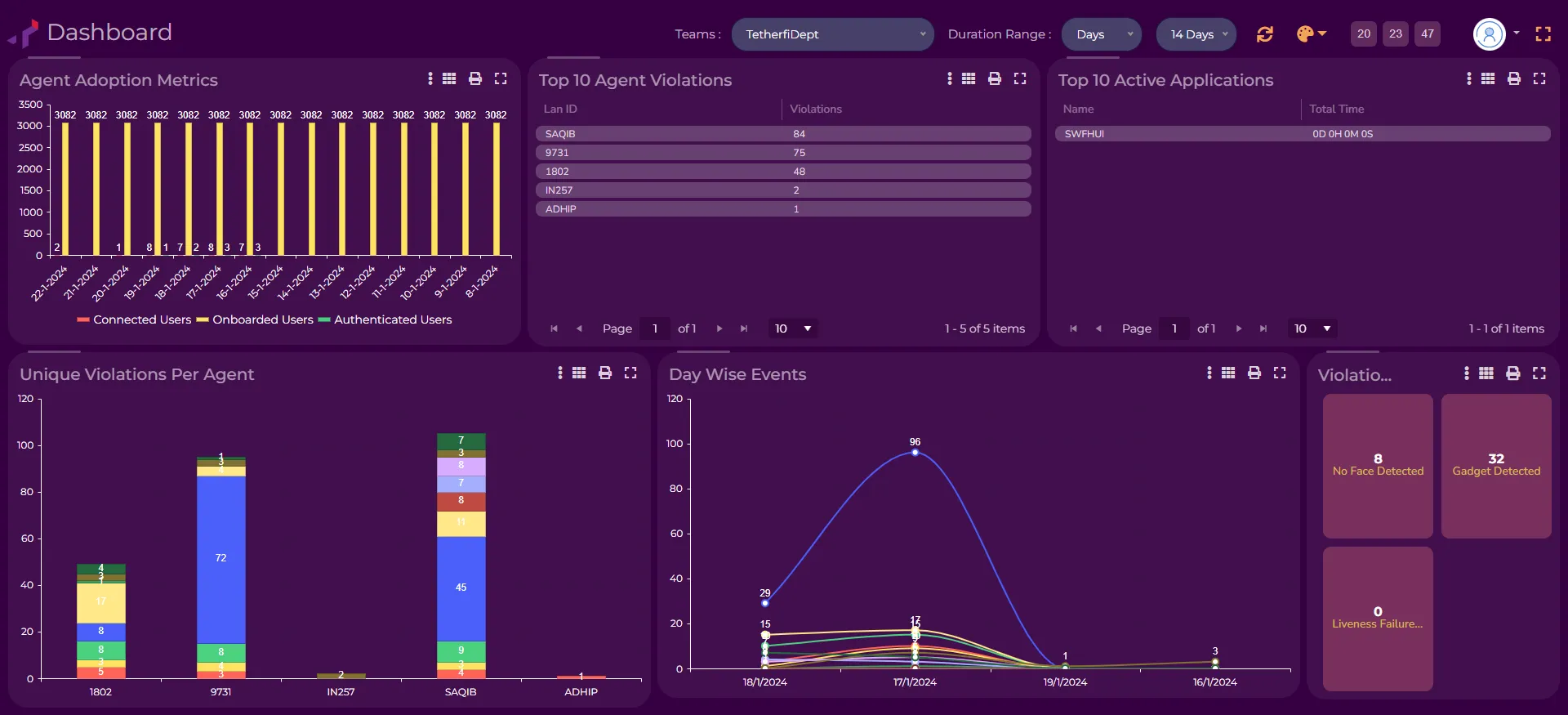
The dashboard contains 2 sections, the top panel and the widgets both of which will be explained in the following sections.
Top Panel
The top panel of the dashboard allows the supervisor to control the data teamwise , days wise, or hourly wise.
The top panel of the dashboard is as shown below.

While viewing the data shown in the widgets, the supervisor can filter the data shown in the widgets using a combination of the 2 dropdowns present as described below.
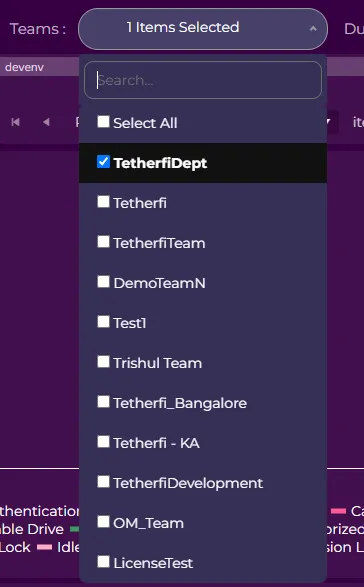
Team
The supervisor can filter the data shown in the dashboard based on the team selected in the Teams dropdown. The teams dropdown contains a list of all the teams that comes under that supervisor in the organization hierarchy. Once a team is selected, the data shown in the widgets will be shown for all the agents in that team.
Duration Range
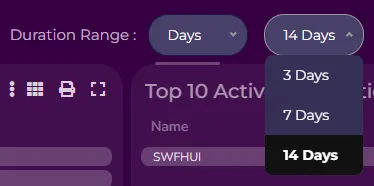
The supervisor can filter the data shown in the dashboard based on the duration in the Duration Range dropdown. The Duration Range dropdown contains 2 prefilled dropdowns i.e. days and hours. If the user selects 8 hours, the data shown in the widgets will be filtered based on the last 8 hours, similarly if the user selects 3 days, the data shown will be filtered based on the last 3 days.
Widgets Panel
The SWFH Supervisor Dashboard contains multiple widgets displaying certain agent metrics. Each widget is explained in detail below.
Agent Adoption Metrics
This widget is a bar chart which shows the agent adoption metrics of the team(s) selected.
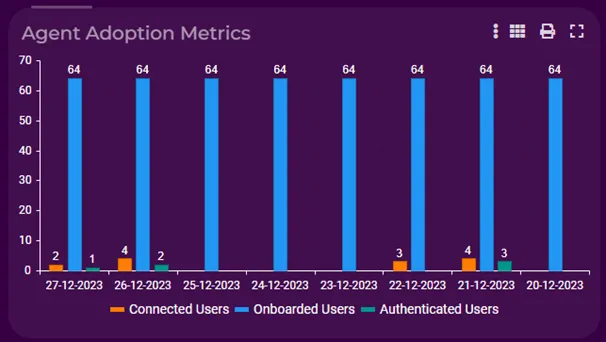
Agent Adoption Metrics widget consists of 3 metrics:
- Onboarded Users: The number of valid, enabled agents associated with the team(s) selected. The duration dropdown does not have any effect on this metric.
- Connected Users: The number of agents on whose systems SWFH UI was launched and got connected to the SWFH server. These agents may or may not have had a successful face authentication.
- Authenticated Users: The number of agents who have had a valid face authentication.
The above 3 metrics are calculated day wise, hence the axis representations are as follows
- X-axis: represents each day and each day consists of the onboarded agents, the number of agents who connected and the number of agents who got authenticated.
- Y-axis: represents the number of agents.
Top 10 Agent Violations
This widget is a grid which shows the top 10 agents from the team(s) selected with the greatest number of violations in descending order.
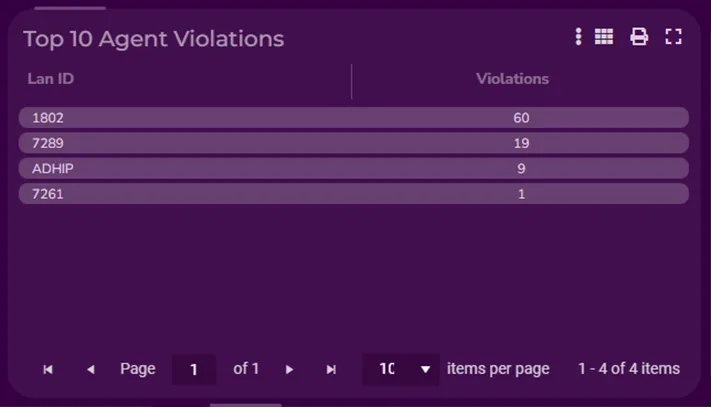
The above grid consists of 2 columns.
- Lan ID: The Lan ID of the agent.
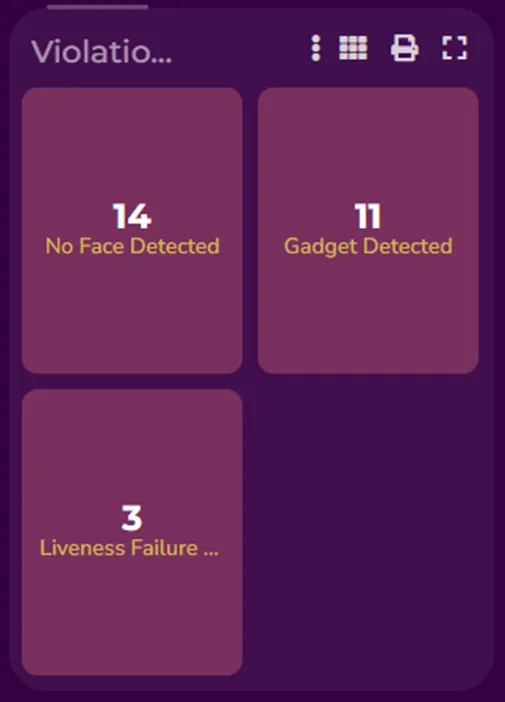
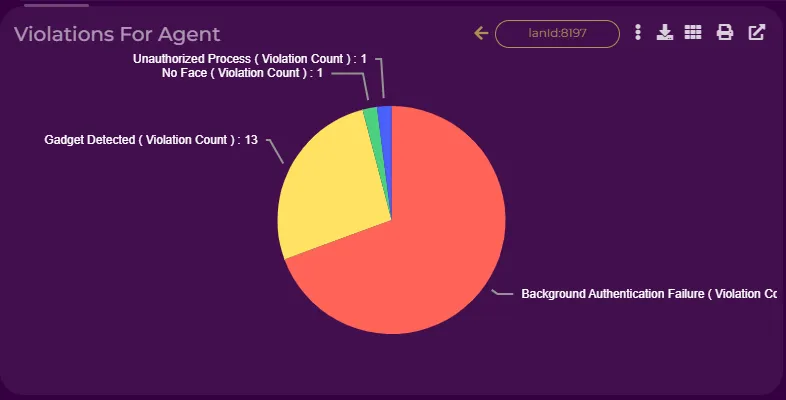
- Violations: The total number of violations that occurred for that agent, based on the duration selected. On click of this count another widget will be displayed showing the individual violations along with their counts for the selected agent as shown below.
Top 10 Active Applications
This widget is a grid which shows the top 10 active applications running on the agent’s system from the team(s) selected which are sorted in descending order of active time.
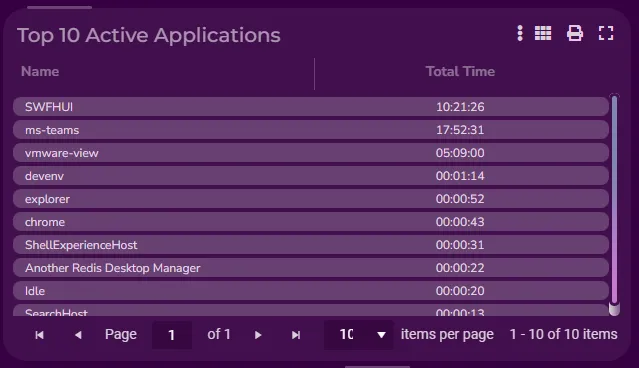
The above grid consists of 2 columns.
- Name: The name of the application/process running on the agent’s system.
- Total Time: The total time the application/Process has run on the agents system belonging to the team(s) selected.
Unique Violations Per Agent
This widget is a stacked bar chart which shows the violations done by the agents from the team(s) and duration selected.
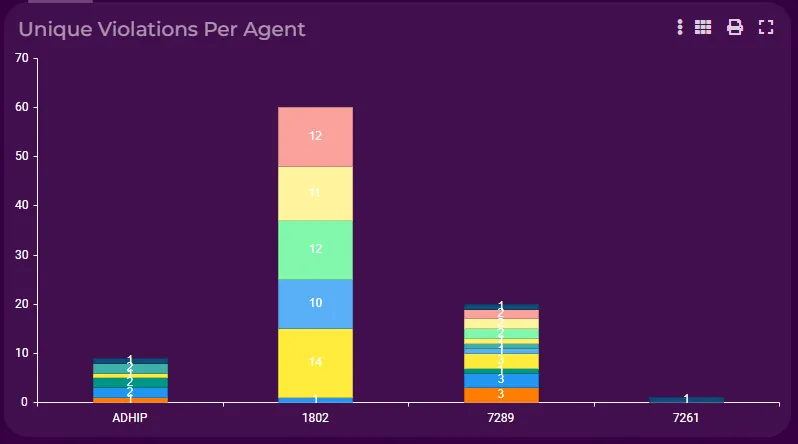
The axes representations for the above widget are as follows.
- X-axis: represents each agent, i.e. the agent’s Lan ID.
- Y-axis: represents the number of violations/events that occurred for the agent.
Day Wise Events
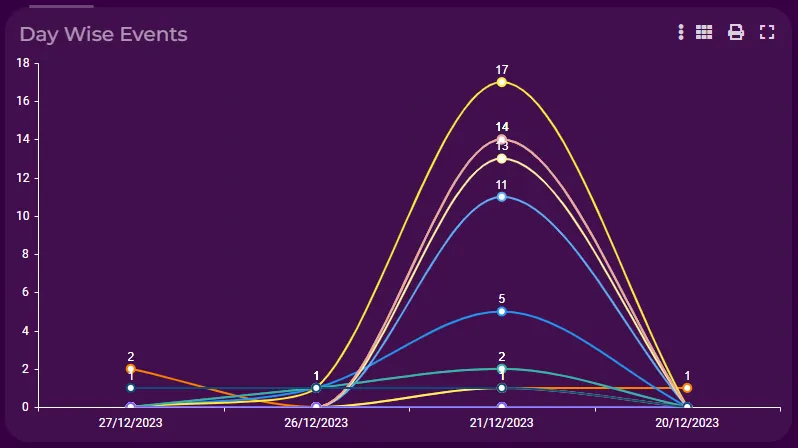
This widget is a line chart which shows the number of times a violation occurred in a day for all the agents from the team(s) and duration selected.
The axes representations for the above widget are as follows.
- X-axis: represents each day.
- Y-axis: represents the total number of times each violation/event occurred in that day.
Violation Counts
This widget is a summary column which shows the number of times the violation occurred based on the team(s) and duration selected.