Supervisor Console
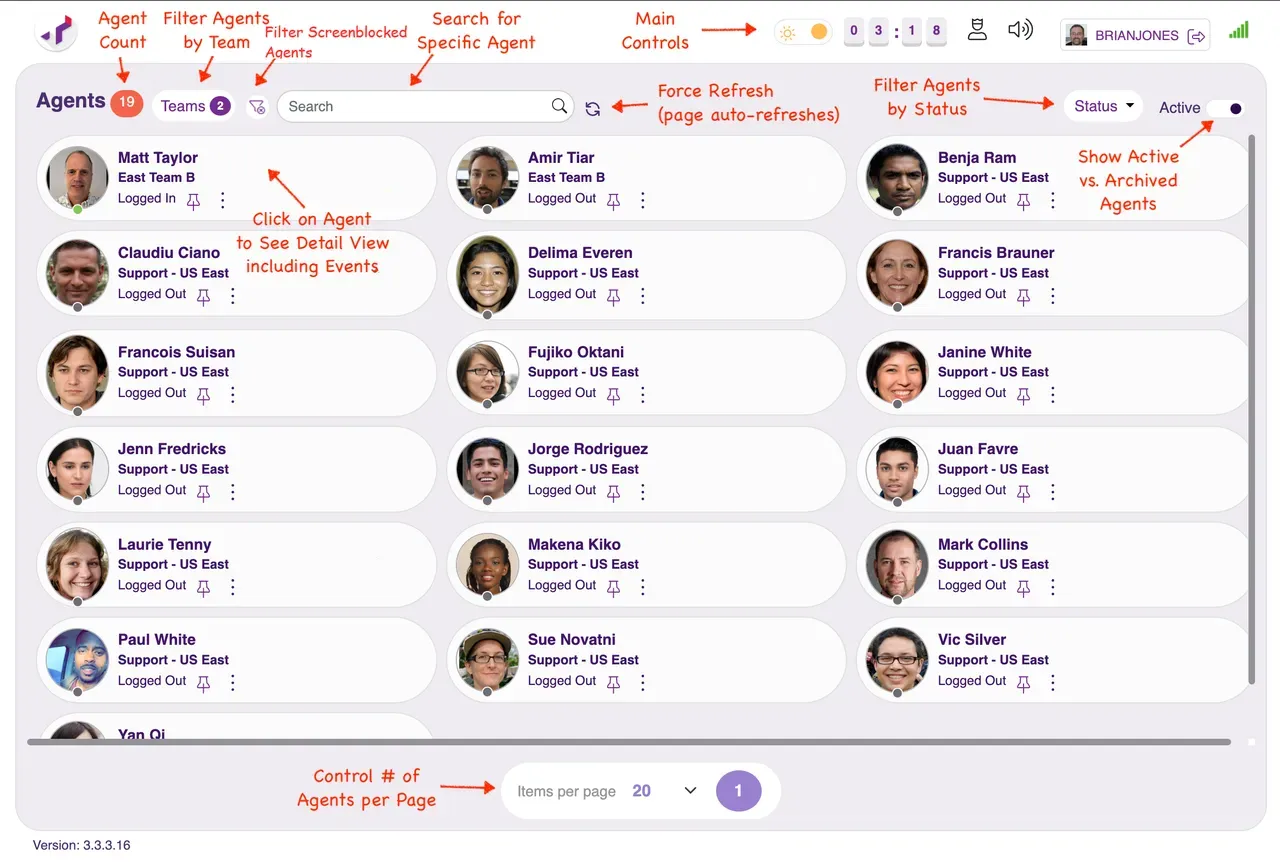
When you first access the Supervisor Console, you will land on the dashboard. The dashboard contains a list of the agents which you can see based on the organizational structure configured for Secure Work from Home. The image below shows an example dashboard with annotations identifying different parts of the screen.
NOTE
If you don't see the agents you expect, contact your IT team. Agent visibility is controlled through the Organizational Structure configuration.
Main Controls
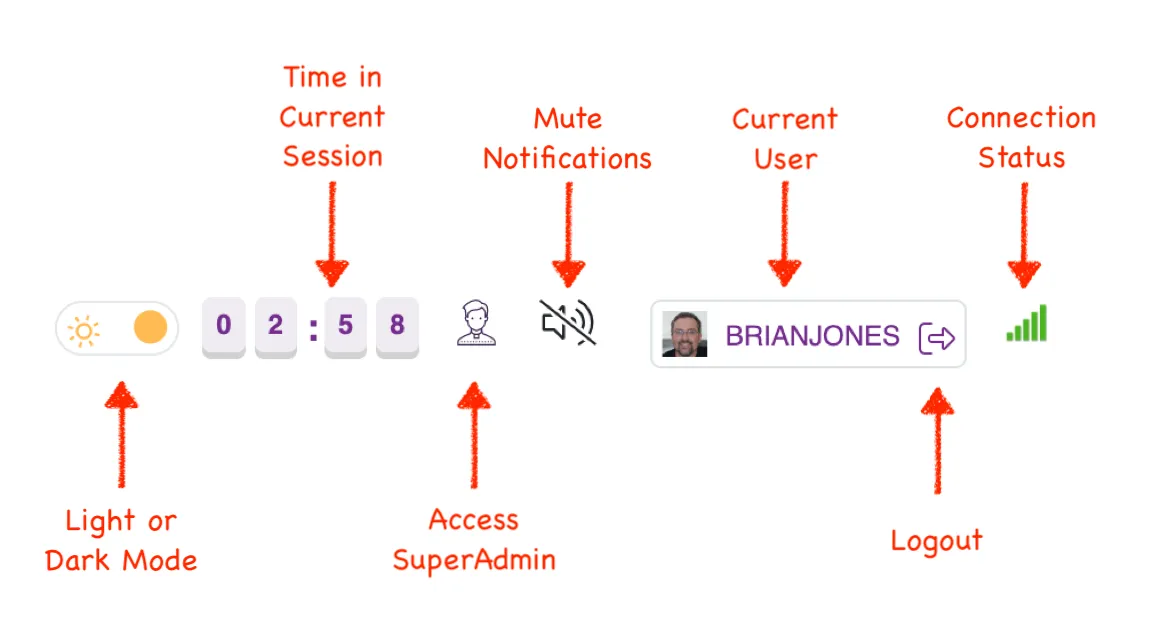
At the top of both the Dashboard and Agent Detail View, you will have the following controls.
- Light or Dark Mode - for those who prefer a dark (or light) background. This will be saved across logins.
- Time in Current Session - how long you have been logged into Supervisor during this session
- Access SuperAdmin - see SuperAdmin section for more info
- Mute Notifications - enable/disable the notification sound which plays when agent events are received
- Current User - who is currently logged into this supervisor console
- Logout - logout of this supervisor console
- Connection Status - indicates if supervisor console can connect to the backend (green is good)
Agent Tile
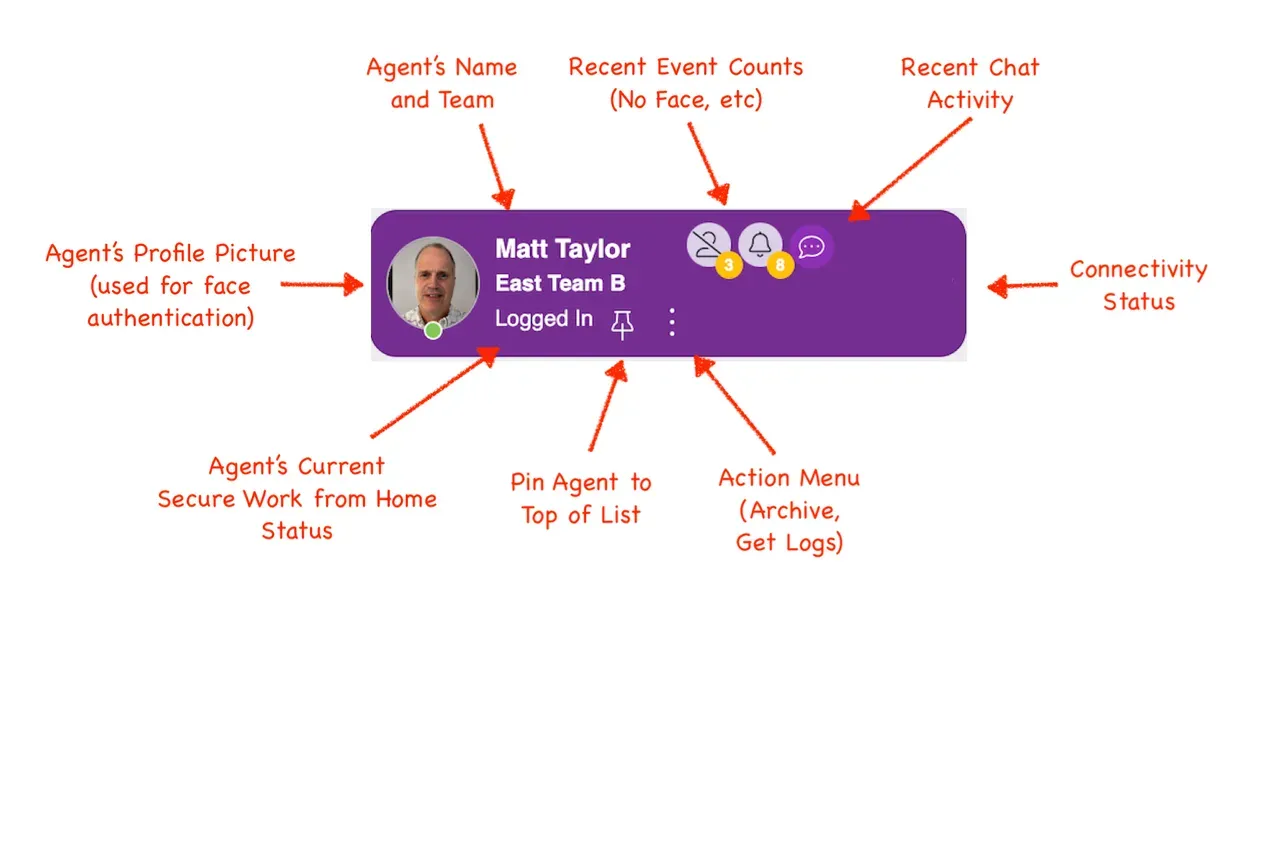
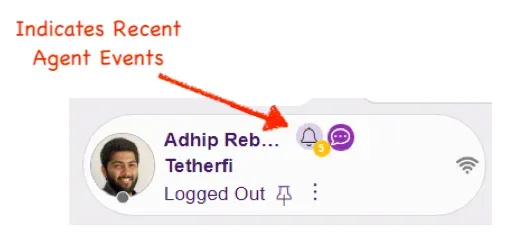
The Dashboard contains a list of agents, each with their own agent tile. Clicking on an agent's tile opens up the Agent Detail View for that agent. When an agent is selected, the background of the tile turns purple. The tile includes useful information about the agent.
Event Notifications
While you are in the Supervisor Console, you will hear a notification every time an agent in your list generates an event (unless you have muted notifications - see Main Controls above). To identify the agent associated with the event, you can look at the agents tiles and see 1 or more icons indicating recent events occurred.
The icon indicates the type of notification (a bell is a generic event like an agent's session ended). The number indicates how many events have occurred since you last looked.
When you click on an agent's tile to look at the events on the Agent Detail View, these icons and numbers are cleared.
Filters
The Supervisor UI includes a built-in unified filter panel that allows supervisors to apply filters at any time. These filters are applied across all agents visible in the agent list.
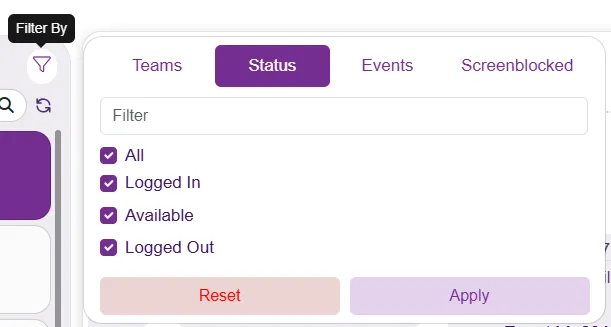
The supervisor can apply only one filter at a time. When a new filter is applied, any previously applied filter is automatically cleared.
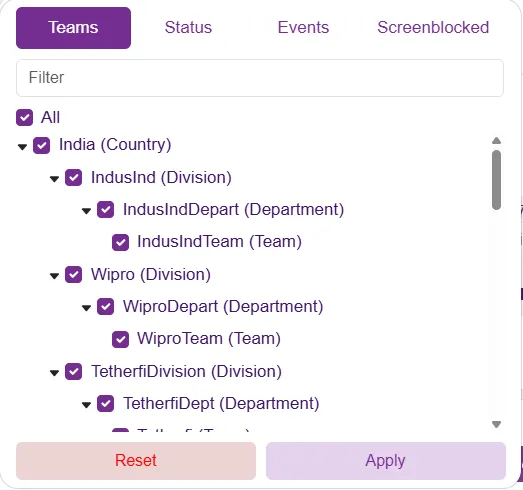
Filter By Teams
The Teams filter displays the organizational hierarchy relevant to the logged-in supervisor. Supervisors can select or unselect teams as needed and apply the filter accordingly.
Filter By Status
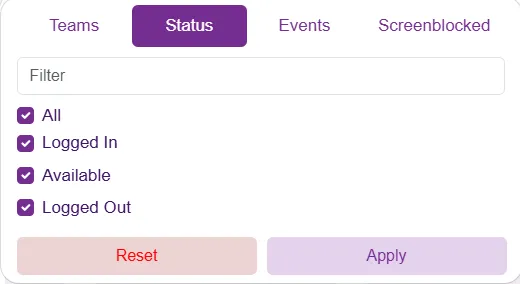
The Status filter shows the available agent statuses. Supervisors can select or unselect the required statuses and apply the filter as needed.
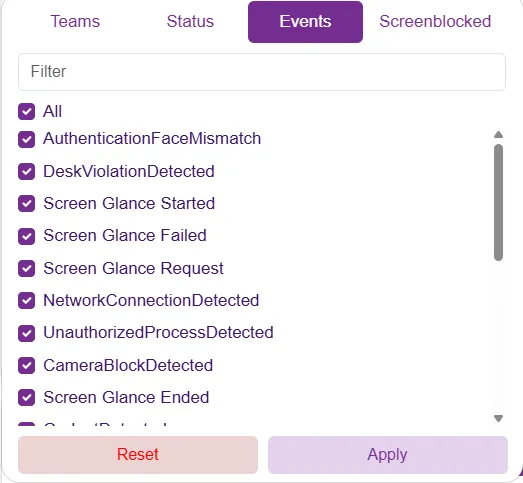
Filter By Events
The Events filter shows the list of events. Supervisors can select or unselect the required events and apply the filter as needed.
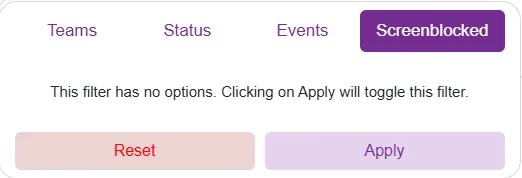
Filter By Screenblocked Agents
The Screenblocked Agents filter works as a toggle. When Apply is clicked, the agent list is filtered to show only agents whose screens are blocked. Clicking Apply again clears the filter.
Archive Agents
When agents leave, they will still remain on the dashboard for a time. You can remove them by archiving them. To do this, click on action menu on the agent's tile (see Agent Tile earlier) and select "Archive".
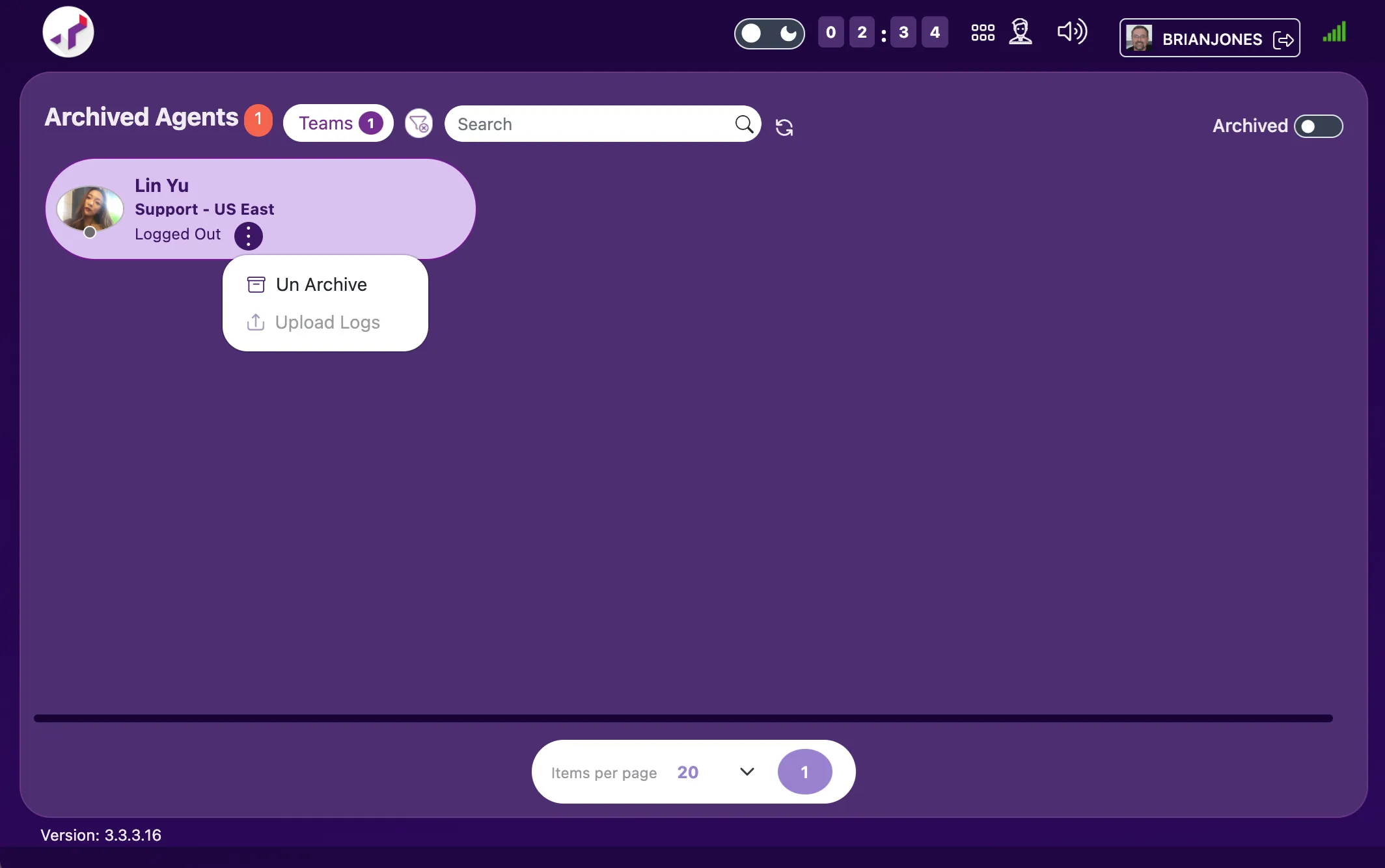
You can also unarchive agents (bring them back to active). To do this, you will need to go the archive view by clicking on the Active toggle in the upper right of the dashboard. When you click on the Active toggle, the toggle's name changes to "Archived".
To "unarchive" an agent, find them on the Archived view, click on the agent's action menu, and select "Un archive".