Logging In
NOTE: In order to access the Supervisor Module, you will need 2 things:
- The web address of your company's supervisor module. Your IT team should be able to supply this to you.
- A user account. If you are using SSO (single sign-on), this will just be your standard login you use for other tools at your company. Otherwise, you should have been provided a Login ID for Secure Work from Home by your IT team.
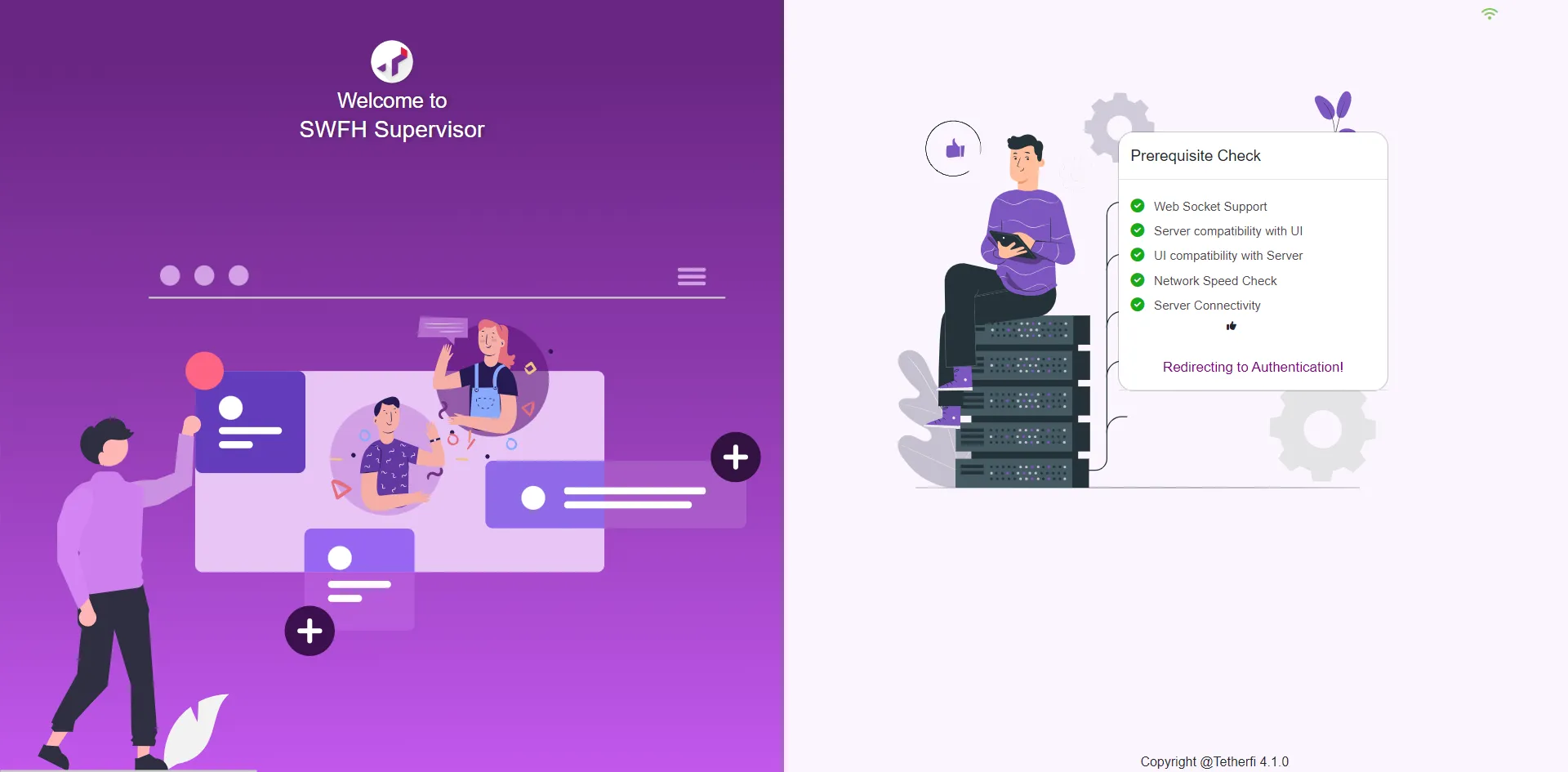
Prerequisite Checks
When you start up the Secure Work from Home Supervisor Module, we do an automatic check to make sure the browser and computer you are using will work well. This check will typically only take 1 or 2 seconds.
No Single Sign-On (SSO)
If SSO is not configured, you will see the screen below when you go to the supervisor console's web address in your web browser. In the Supervisor ID, enter your Login ID (or LAN ID) and click Sign In.
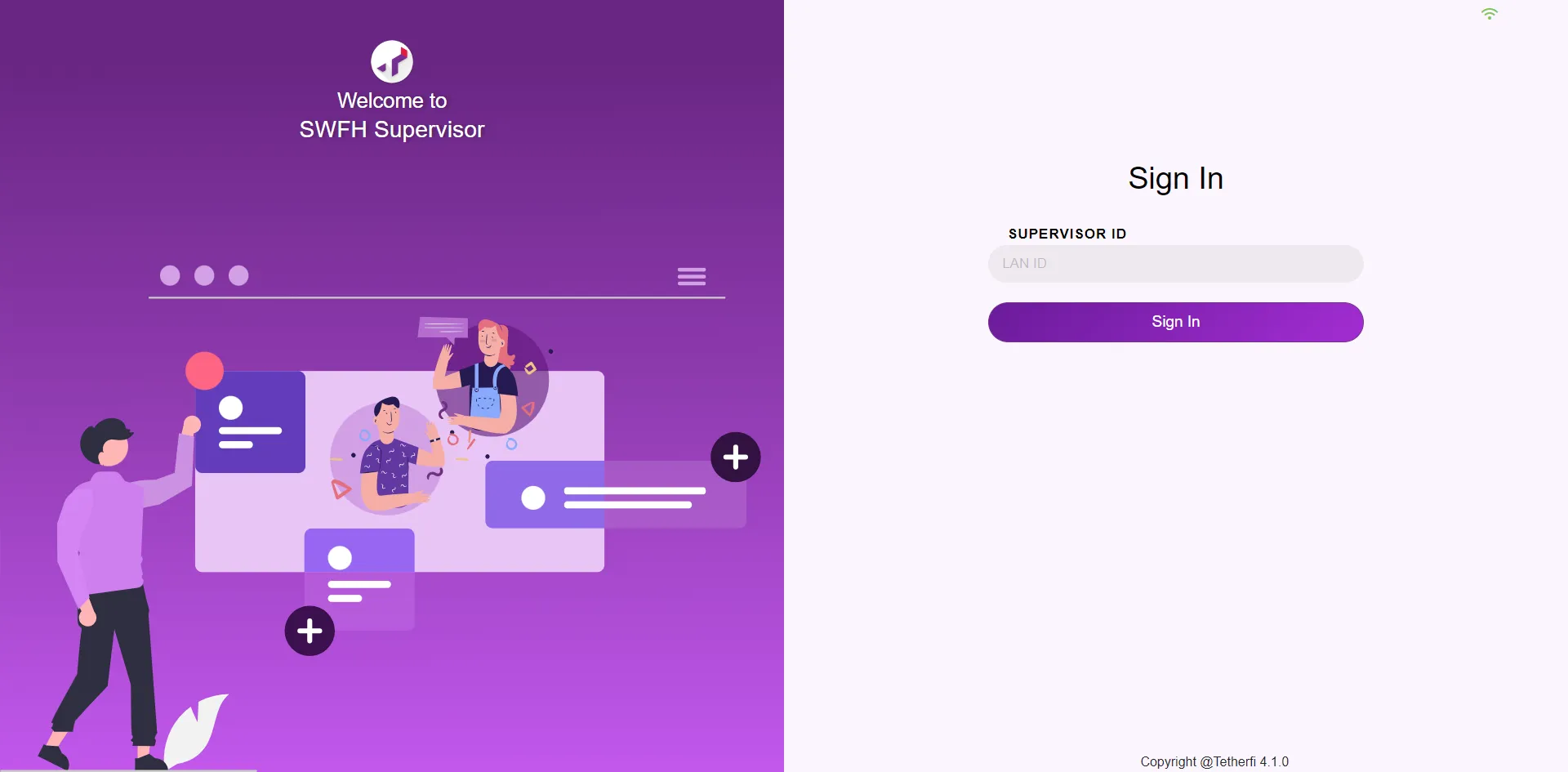
Supervisor UI offers an additional layer of security by using facial authentication (if enabled). In the Supervisor ID enter your Login ID (or LAN ID), look into the camera and click Sign In.
With Single Sign-On (SSO)
If your company's SSO has been integrated with the Supervisor Console, you won't need to know your Secure Work from Home Login ID. When you enter the Supervisor Console's web address in your browser, you will go through your company's usual login flow that is common for your other apps and will land on the Supervisor Console's Dashboard page.
Duplicate (Concurrent) Logins
If you or another person attempts to login to the Supervisor Console on another computer using your Login ID, then the user who is already logged in will receive the following dialog. The purpose of this pop-up is to let you know someone else is trying to login with your user ID and to give you the option to allow that to happen. An example of when you would want to allow this is if you wanted to access your Supervisor Console from another person's desk.
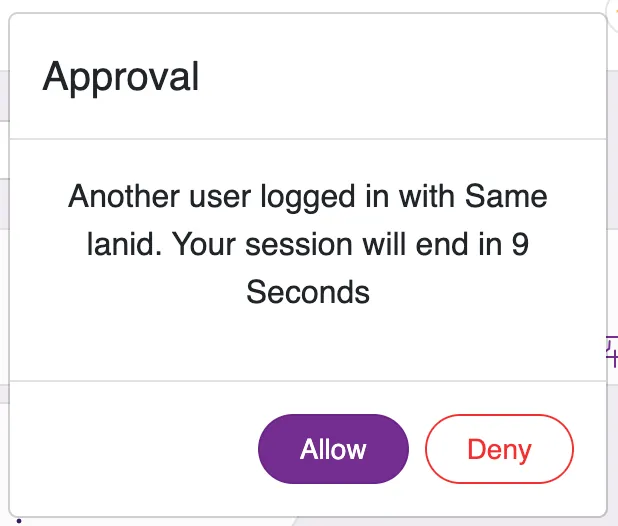
- If you click "Allow" or do nothing, the other Supervisor Console will be logged out when the countdown timer gets to 0 seconds
- If you click "Deny", the other Supervisor Console will remain logged in.
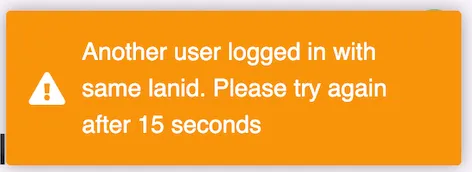
The user who is attempting to login with the same Login ID on the other computer, will see the following while you are making the Allow/Deny decision.