Agent Detail View
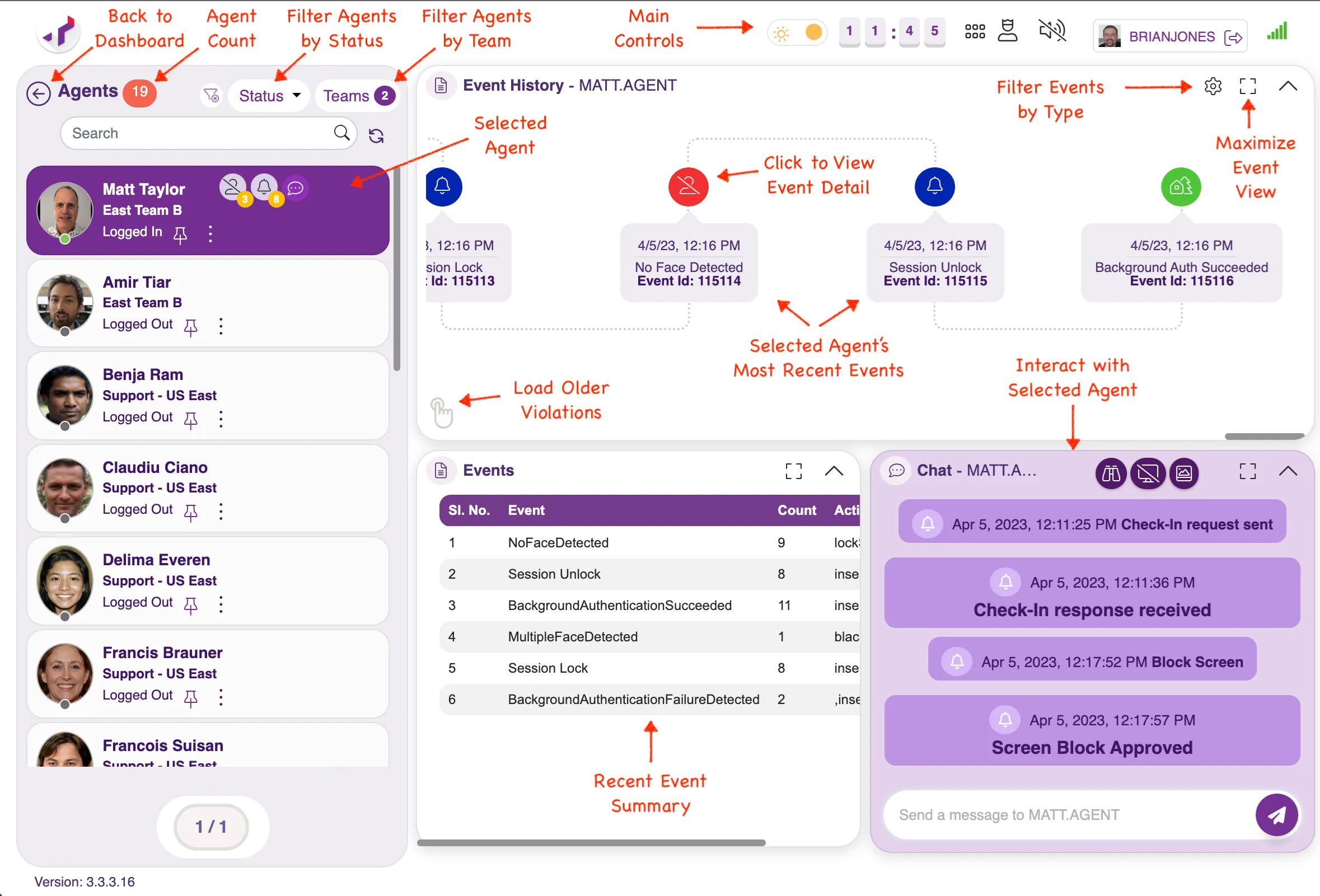
When you click on a specific agent on the Dashboard, the agent's detail view appears. This view lists the same agents as on the dashboard down the left side. In the upper right, it shows the agent's event history with the most recent event on the right. In the lower right is the area where you can interact with the agent.
Note that, from here, you can click on other agents on the left side of the screen to bring up their events (without going back to the dashboard).
The below screen capture includes annotations to identify all the different parts of the screen. Later sections go into more depth.
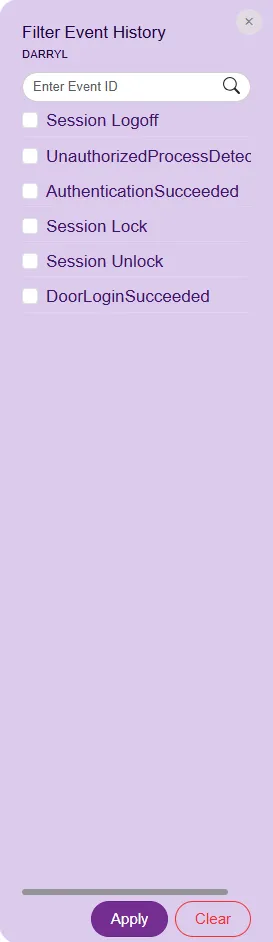
Clicking on the gear in the upper right of the screen allows you to filter an agent's recent events either by he event names (with the checkboxes) or if the event id is known, the event id can be keyed in the search bar.
Event Details
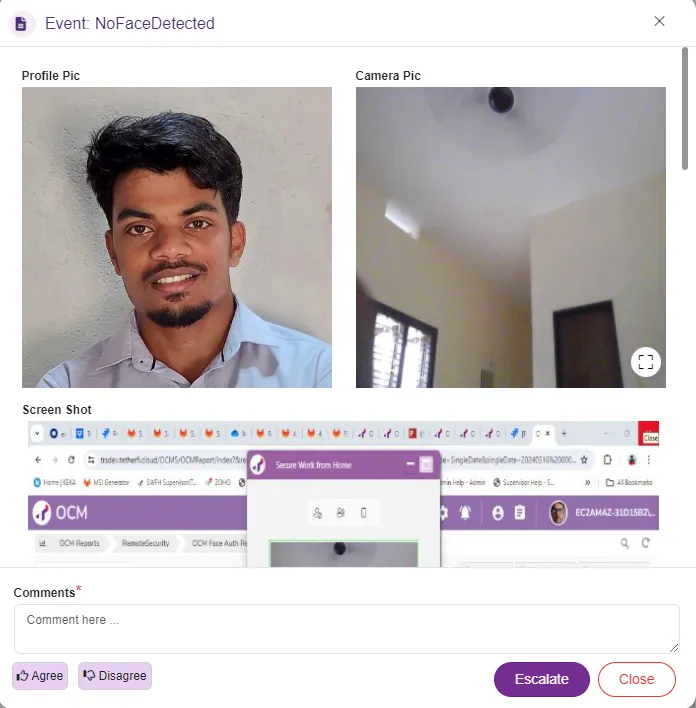
You can see the details of a specific event by clicking on that event (see the Agent Detail View above: "Click to View Event Detail"). When you click on the event, the Event Detail dialog appears. Depending on your configuration, you will see some or all of the following for the event.
- Profile Picture - the agent's profile picture (used for face authentication)
- Camera Pic - what the agent's camera saw when the event occurred
- Screen Shot - a snapshot of what was on the agent's screen when the event occurred
- Screen Recording - A short video of what was on the agent's screen just before and after
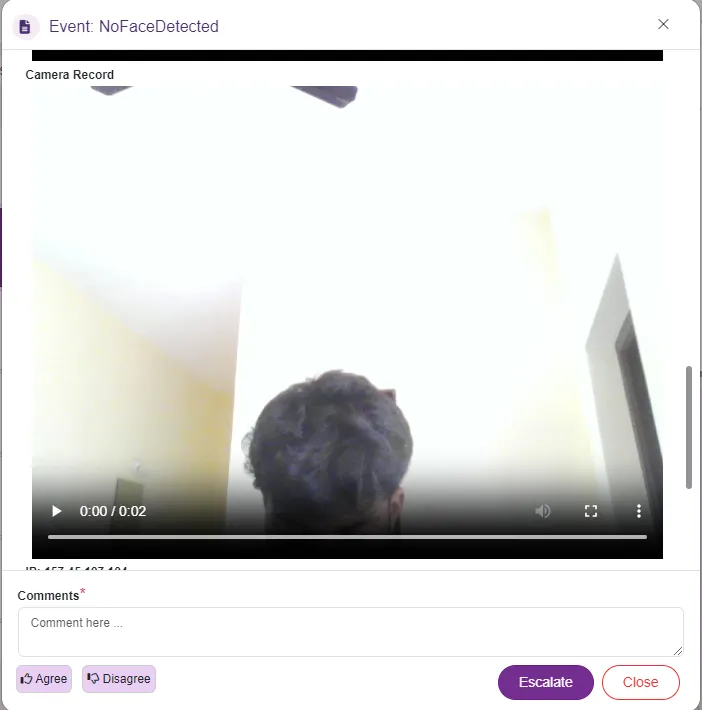
- Camera Recording - A short video of what the agent's camera saw just before and after
- Geolocation - If enabled in OCM/admin, a map showing where the agent was when the event occurred
The following screen captures are an example of scrolling through a NoFaceDetected event's detailed information.
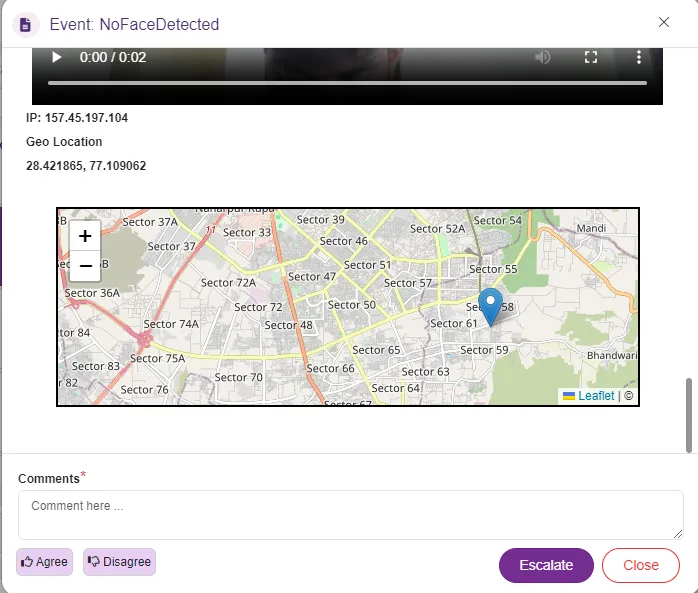
Agree/Disagree
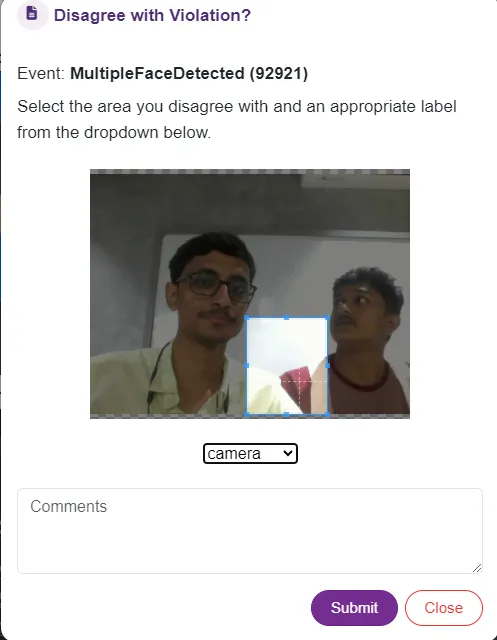
At the bottom left of the Event Detail, you will see 2 purple buttons i.e. Agree & Disagree. If you see an event which you disagree with (e.g., the event says that the agent had a mobile phone in their hand, and you don't see a mobile phone), click on the Disagree button. If the event was detected accurately, click on the Agree button. If the disagree button is clicked a window will appear into which you should explain why you are disagreeing. For some events such as GadgetDetected and MultipleFaceDetected, a Then click Submit.
Calling out these events with which you agree/disagree is helpful for identifying any issues and improving Secure Work from Home's ability to accurately detect specific events.
Escalate
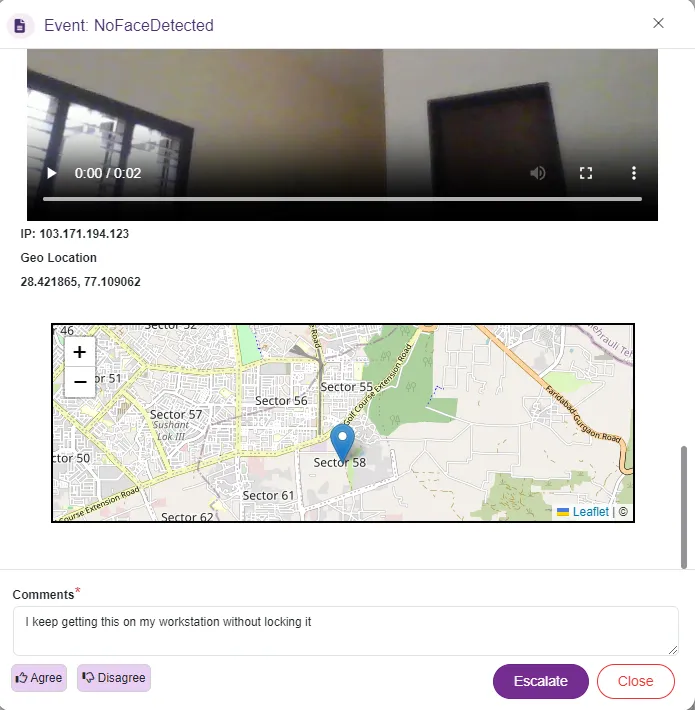
When your company set up Secure Work from Home, the configured your contact center's organizational structure. This structure identifies supervisors and their supervisors / managers and on up. Using the "Escalate" button in the lower right of the Event Detail window allows specific situations to be brought to the attention of your manager.
To escalate a specific agent event, do the following:
- Enter an appropriate explanation in the "Comments" field at the bottom of the Event Detail Window
- Click on the Escalate button
- Confirm that you want to escalate when prompted
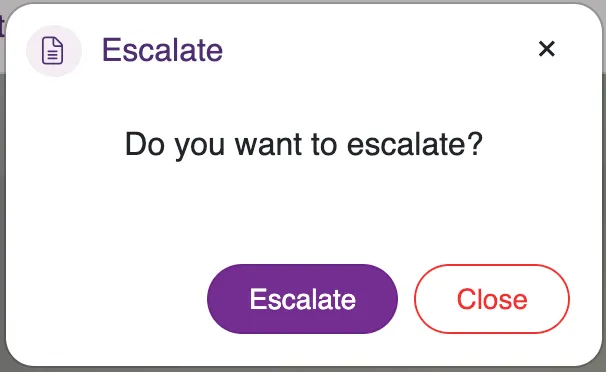
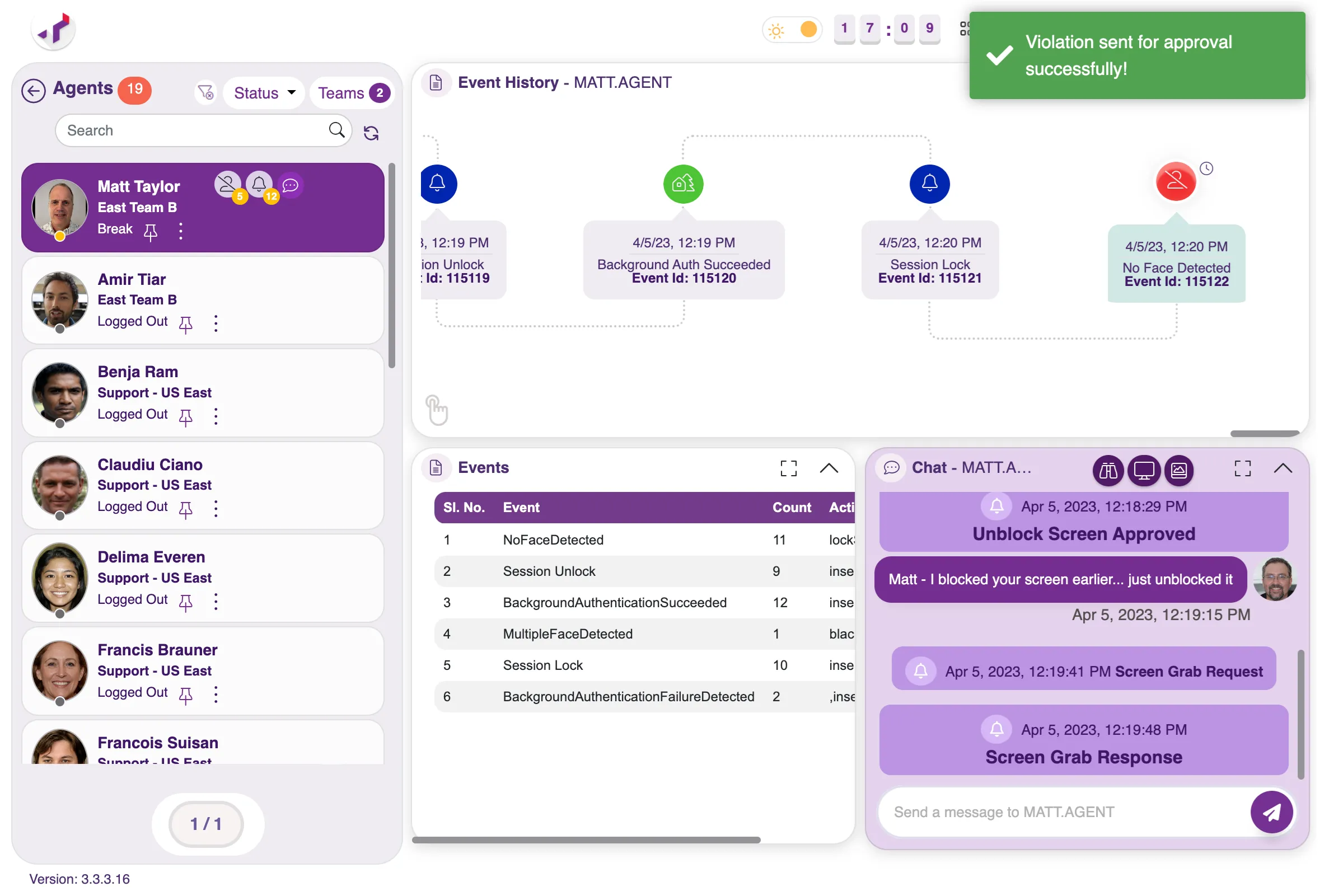
Your escalation will be confirmed in the upper right of the screen with the message "Violation sent for approval successfully!"
Agent Interaction
You will find the area for supervisor-agent interaction in the lower right of the Agent Detail View screen. This area is for interacting with the currently selected agent. If the agent is not current active / logged in, no interaction capabilities are available.
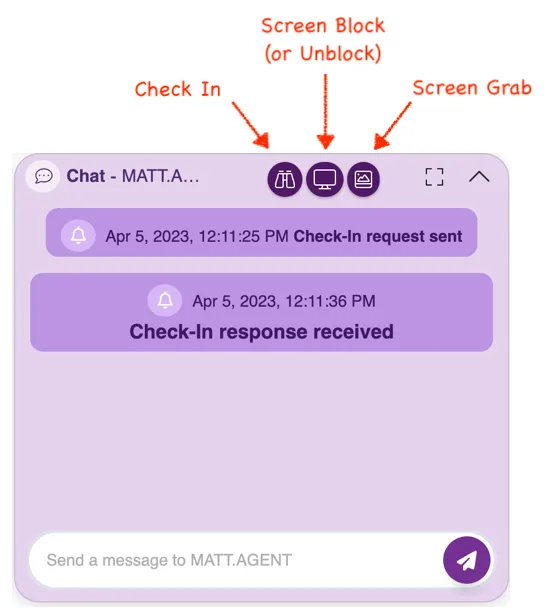
Interacting with the agent includes chatting with them, checking in, blocking / unblocking their screen, and grabbing a capture of the agent's screen.
Check In
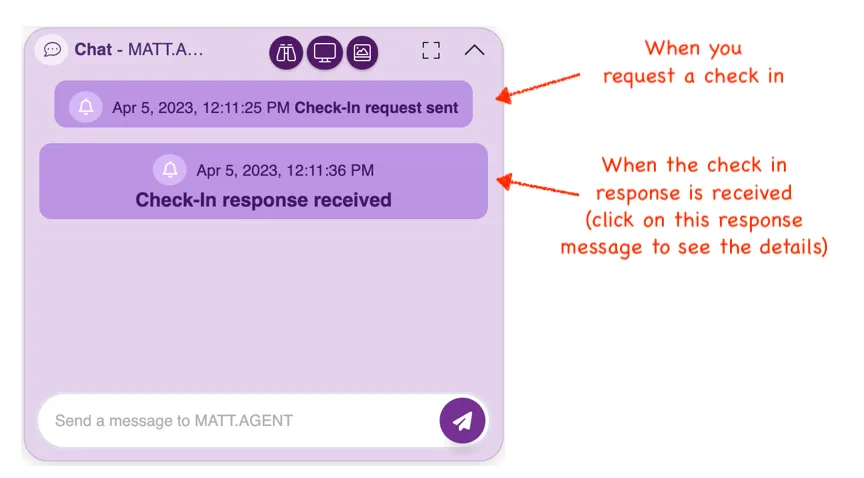
Selecting check in sends a request to the application running on the agent's desktop to gather certain information. The information gathered is the same as is gathered when an event is generated. The Event Detail section above details the information that will be gathered on a check in.
NOTE: Whether or not the agent needs to confirm a Check In request is configurable. For more information, talk to your IT team or whomever configures your Secure Work from Home solution.
Screen Block / Unblock
Secure Work from Home can be configured to block the agent's screen when certain events occur. This screen block requires that 1 of 2 things happen to unblock the agent.
- The agent get a on-time passcode (OTP) from a supervisor to use to unblock their screen
- The supervisor unblock the agent's screen using the "Unblock" button described here.
When an agent's screen is not blocked, the Screen Block button will appear. When an agent's screen is blocked, the Screen Unblock button will appear.
To unblock an agent's screen, simply click on the Screen Unblock button.
Providing a One-Time Passcode
As described above, a supervisor can click on Unblock to remove the block on an agent's screen.
However, the supervisor can also provide a one-time passcode (OTP) to the agent for them to enter and unblock their screen. To get this OTP, click on the offending event in the event history (typically the most recent red event) and the OTP will be copied to your paste buffer (you will get a message on the screen). In the chat area, right click and choose "Paste" in the chat area and send the OTP to the agent.
Screen Grab
As with Check In, the seupervisor can request a screen grab of the agent's screen. While a check in includes all the details of an event (camera pic, screen grab, camera video, screen video, geolocation), a screen grab just grabs the agent's screen at the time.
NOTE: As with Check In, whether or not the agent needs to confirm a Screen Grab request is configurable. For more information, talk to your IT team or whomever configures your Secure Work from Home solution.
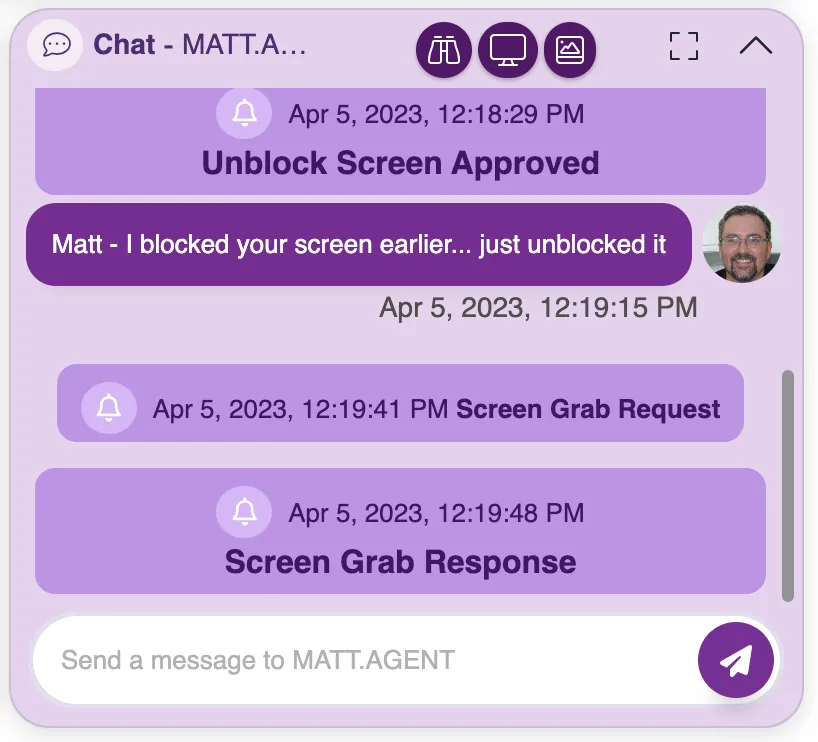
As with the Check In, simply click on the Screen Grab Response area when it appears to see the screen grab.