Events Dashboard
Tetherfi Secure Work Events Dashboard provides insights into the events generated by Secure Work. This page covers the dashboard’s layout, filtering capabilities, the tabs, and the visuals in each tab.
🧭 Access & Navigation
The dashboard is accessible via an Amazon QuickSight account. Users will be invited to create an account, and upon account creation, the appropriate dashboards will be accessible.
From the QuickSight Homepage Dashboards menu, users can select the “Events Dashboard” from the list of available dashboards.
Standard dashboard controls are available from the top-right icons. Key controls are:
- Export options (PDF, print)
- Sharing (limited to pre-shared users)
- AI-powered query suggestion

🛠️ Common Controls
Located at the top of the tab, the controls panel allows users to customize the data for all visuals in the tab:
- Date Range – Select the time period for analysis.
- Team & Supervisor Filters – Choose a team; the supervisor dropdown will dynamically update to show only relevant supervisors.
- Event Type – Filter by specific event types (e.g., violations, all events).
- Event Name – Choose a specific Event Name for the Event Type
- GMT Offset – Adjust the time zone to match your local context.
These controls and filters apply across all visuals and dynamically update the dashboard content.

🧩 Common Menus in Visuals
Each visual includes a menu located in the top-right corner for additional controls.
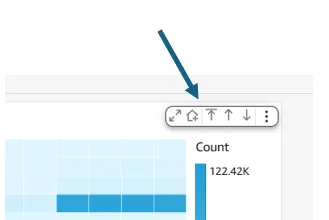
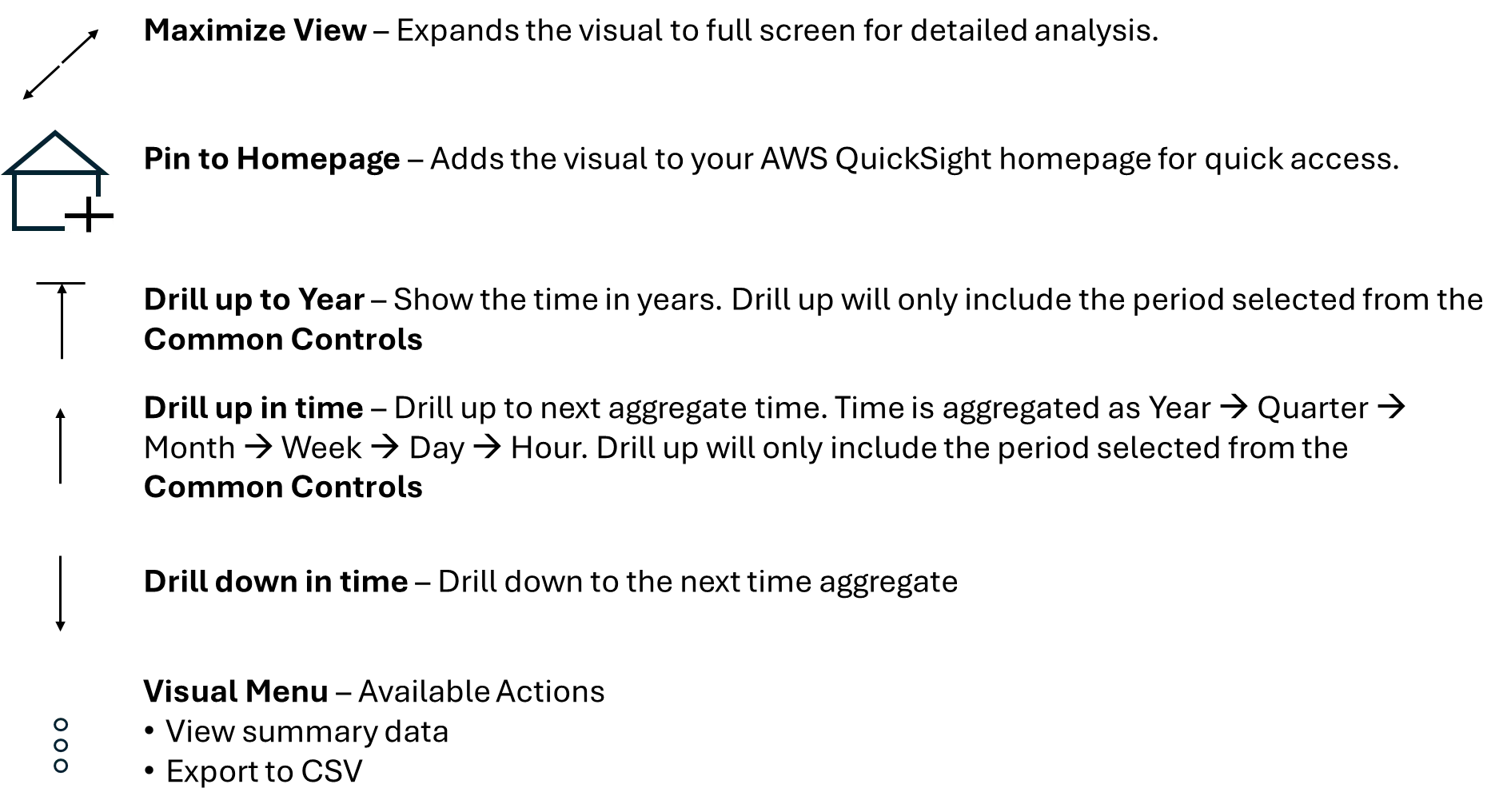
Dashboard visuals are organized into dedicated tabs, each grouping related insights for easier navigation. This dashboard includes the following tabs
Events Tab - Provides an aggregate view of events over the selected time period for the chosen users or teams. The tab contains the following visuals:
Rejected Events Tab - Offers a view of events that have been reviewed and marked as Rejected, helping identify potential false detections. The tab contains the following visuals:
Productivity Tab - Provides oversight on productive versus unproductive periods during a user's workday. The tab contains the following visuals: