Before You Start
The Summarization Model
Speech Assist is turned on for you by your administrator. When it is enabled, the Speech Assist buttons appear in the SWFH window automatically after you sign in. There is nothing for you to install.
First sign-in: preparing the summarization model
The first time you sign in after Speech Assist is enabled, SWFH downloads the AI model that writes your call summaries. This happens in the background and can take some time (typically 20–35 minutes, depending on your network). You can keep working while it downloads.
Until the model is ready, the Start Call (microphone) button is greyed out. Hover your mouse over it to see the current progress:
Tooltip you see | What it means |
|---|---|
Preparing the call summarization model... | SWFH is getting ready to download the model. |
Downloading the call summarization model (45%). Calls can start when it is ready. | The model is downloading; the percentage shows progress. |
Checking the downloaded call summarization model... | The download has finished and SWFH is verifying the file. |
The call summarization model is not available yet. SWFH keeps trying in the background. | The download could not complete yet (for example, a network issue). SWFH retries automatically; no action is needed. |
Start Call | The model is ready. You can start capturing calls. |
Good to know The Open Neuron Edge button works even while the model is downloading, so you can open the Speech Assist window and review earlier calls at any time. |
|---|
How the model is downloaded from the server to your PC
The summarization model is a file of roughly 1–2 GB. It is not part of the SWFH installer. Instead, SWFH fetches it from your organisation’s own SWFH server after you sign in, so that new or improved models can be rolled out without reinstalling SWFH.
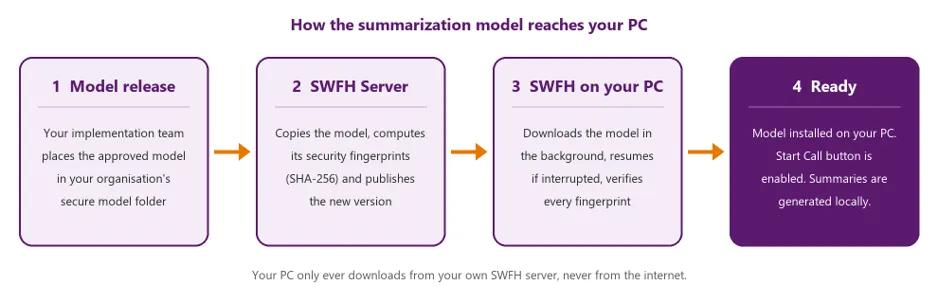
1. Release. Your implementation team places the approved model, together with its licence file and a version number, in your organisation’s secure model folder (a private cloud storage bucket or a folder on your SWFH server).
2. Server preparation. Every SWFH server notices the new version within a few minutes. Each one copies the model to its own disk and calculates SHA-256 security fingerprints for the whole file and for each 16 MB block. When all servers hold the identical file, the new version is published to agents. This usually takes 3–8 minutes (up to about 15 minutes with several servers).
3. You sign in. When Speech Assist is enabled for your team, the SWFH background service on your PC checks with the SWFH server which model version is current. It first checks any model already on your PC; if it is current and intact, nothing is downloaded.
4. Download. If you need the model, it is downloaded in the background over your normal SWFH connection. To avoid every PC asking at the same moment, each PC waits a random 0–5 minutes before starting. While it downloads, the Start Call button stays greyed out and its tooltip shows the percentage (see 2.1).
5. Verification. When the download finishes, SWFH checks every fingerprint against the ones published by the server. A file that has been altered or damaged in transit is never used; the damaged part is downloaded again.
6. Ready. The verified model is installed and the Start Call button becomes available. From now on, call summaries are generated on your PC.
How long it takes
Typical times after you sign in, measured with the default server settings:
Step | Typical time |
|---|---|
SWFH service starts and connects to the server | About 20 seconds |
Check of any model already on your PC | 10–20 seconds (none on first install) |
Random wait before asking the server | 0–5 minutes (2.5 on average) |
Download | About 15 minutes for a 1.1 GB model, 27 minutes for a 2 GB model |
Verification and installation | 10–30 seconds |
Total | About 20–35 minutes |
Times can be longer when many agents download at once (see 2.4), or when your network connection is slow.
Built for VPNs and busy networks
• Interrupted downloads resume. If your network or VPN drops, or the server restarts, the download continues from where it stopped instead of starting again.
• Busy servers queue politely. Each server sends the model to a limited number of PCs at a time and at a capped speed, so that the downloads don’t overload your network. If the server is busy, your PC waits and tries again automatically a couple of minutes later. No action is needed from you.
• Graceful fallback. If the model can’t be fetched yet, the tooltip says “The call summarization model is not available yet. SWFH keeps trying in the background.”
When a new model version is released
• Your PC checks for a new model version each time the SWFH service starts, that is, at your next sign-in or PC restart after the new version is published.
• You can keep working. While the new version downloads, the model you already have keeps working, and the Start Call button stays available.
• The new model replaces the old one as soon as it has been verified. If a summary is being generated at that moment, the switch simply waits until Speech Assist is idle.