Agent Sensei - Quality Metrics
Introduction
Agent Sensei analyses the call transcript and gives you feedback on how the call went: a compliance score, a coaching flag, scores for individual quality categories and the sentiment of the conversation. To see it, select Agent Sensei in the side tabs on the right edge of the window.
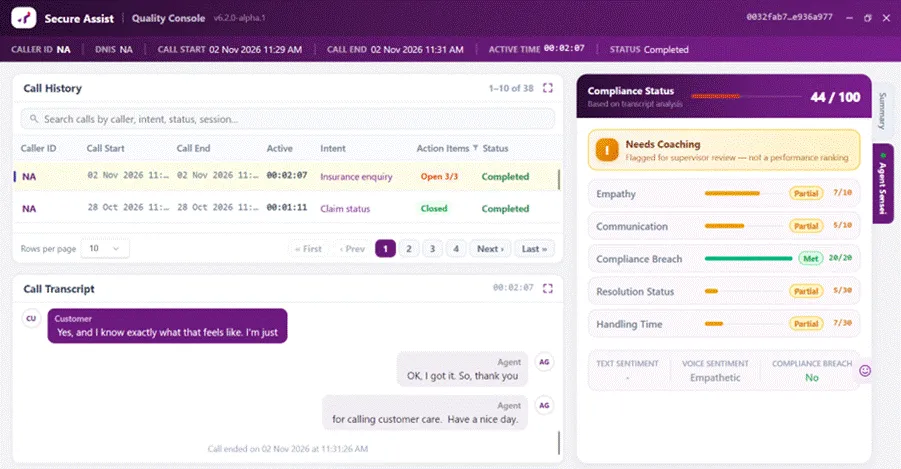
Figure 13: Speech Assist window with the Agent Sensei analysis open
Side tabs
The two vertical tabs on the right edge switch the right-hand panel between Summary (call summary and action points) and Agent Sensei. The dot on the Agent Sensei tab tells you the result at a glance, without opening it:
Dot colour | Meaning |
|---|---|
Grey | No Agent Sensei results for this call yet. |
Green | No compliance breach on this call. |
Red | A compliance breach was found on this call. |
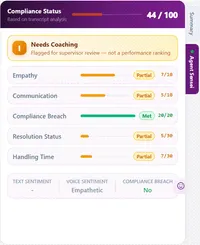
Figure 14: Agent Sensei panel
Compliance Status score
The header shows Compliance Status – Based on transcript analysis and an overall score out of 100 (for example 44 / 100). The bar colour shows the score band:
Bar colour | Score |
|---|---|
Green | 75 or more |
Orange | 50 to 74 |
Red | Below 50 |
If there is no result yet, the score shows “-”.
Coaching banner
Banner | Text shown | Colour |
|
|---|---|---|---|
Awaiting Analysis | Results appear once the call has been analysed | Grey |
|
Needs Coaching | Flagged for supervisor review — not a performance ranking | Amber |
|
No Coaching Needed | No coaching flags raised for this call | Green |
|
Needs Coaching is not a rating A Needs Coaching flag simply highlights the call for a supervisor to look at together with you. It is not a performance ranking. | |||
Category scores
Below the banner, each quality category gets its own row with a bar, a badge and its score against the maximum for that category. The categories and their maximum points are set by your organisation. In the example above they are Empathy (out of 10), Communication (10), Compliance Breach (20), Resolution Status (30) and Handling Time (30).
Badge | Meaning |
|---|---|
Met (green) | Full marks for this category. |
Partial (amber) | Some, but not all, of the available points. |
Not Met (red) | No points for this category. |
Sentiment and compliance breach
Indicator | Description |
|---|---|
TEXT SENTIMENT | The overall tone of what was said, based on the words in the transcript (for example Positive, Neutral or Negative). |
VOICE SENTIMENT | The tone of the voices on the call (for example Empathetic). |
COMPLIANCE BREACH | No (green) when no compliance breach was found; Yes (red) when one was. A “-” means no data is available. |
When the analysis is not available
• While the call is being analysed, the panel shows “Agent Sensei is analysing this call...”.
• If the analysis fails, the panel shows “Agent Sensei unavailable” with a short reason and a ▶ Retry Agent Sensei button. Click it to try again.
• Very short calls may not be analysed. The message explains if the transcript is below the minimum length set by your organisation.
Your Calls Are Safe
• PC shut down or restarted after a call? Calls that ended but weren’t saved to the server yet are kept securely (encrypted, for your Windows user only) on your PC. The next time you sign in, they reappear in Call History and are summarized and saved automatically. (Paused calls wait for you to click Summarize.)
• Graphics card problem? If your PC’s graphics card can’t be used for the summary, Speech Assist automatically falls back to the processor and the summary still appears, only a little more slowly.
• Window closed by mistake? Closing the window only hides it. Click Open Neuron Edge to bring it back. Nothing is lost.