Interactive Install
Interactive Install involves downloaded and manually walking thru the installation process on each agent desktop. Following are the steps to follow.
Download Install File (MSI)
[[get the latest MSI -- this could be customer-specific or a generic install -- need to cover both of these instances in documentation]]
Start Installation
- Locate Locate Installation File Open “File Explorer”, go to the “Downloads” folder, and find the installation file. Will have a name similar to “Secure_Work_From_Home_3.5.9.1” (number at end will likely be different)
- Double Click Installation File to Start
Allow Installation to Continue
Your computer may ask you to allow the install to continue.
If you see that this install is signed and verified by Tetherfi ("Verified publisher: TETHERFI PTS. LTD."), you can click "Yes" to continue.
If it does not show as signed as signed and verified by Tetherfi, select "No" and contact your IT / Admin.
Confirm Stopping/Removing Previous Installation
The installer needs to ensure that any prior installation of Secure Work from Home is shut down (stopped) and removed prior to continuing. If asked, select "Ok".
Restart Computer
When most of the installation process has completed, you will be prompted to restart the computer to finalize the installation. Click "Yes" when prompted.
Start Secure Work from Home
Once you have restarted the computer, locate the "Secure Work from Home" icon on the desktop and double click it. This will start up the app for the initial login.
Wait for AI Model Download
Secure Work from Home's edge AI capabilities require that current AI models be downloaded and optimized for the agent's computer. This will take a few minutes. Please be patient.
Verify / Enter Tetherfi Agent ID
You should have a valid Tetherfi user ID from your administrator. By default when it starts for the first time, Secure Work from Home uses the name of your user on your computer. If what shows up is not the same as the Tetherfi user ID you received from your administrator, click on the user name it shows for the computer and change it to your Tetherfi user ID.
Authenticate and Login
When ready, the Secure Work from Home application will confirm at the top of the window with the message "Agent features and face found, you can login now".
Assuming you are the agent, click on "FACE AUTH" to authenticate against your profile picture.
If face authentication fails, please reference [[[face auth failure section]]]
Troubleshooting FAQ’s
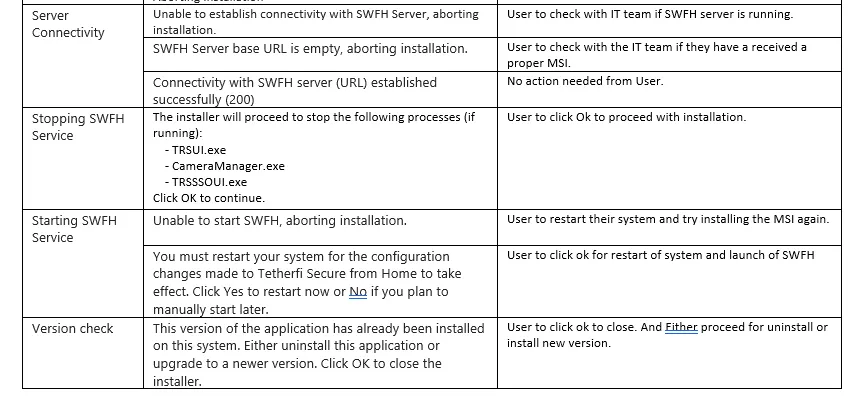
Network connectivity failures - Installer tries to connect to SWFH Server, if it is not able to connect, installation is aborted, and logs are written in the agent system.
Please check for network connectivity on the system. If network connectivity is good and the below error pops up during installation, reach out to your IT team.
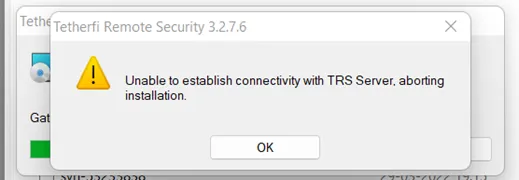
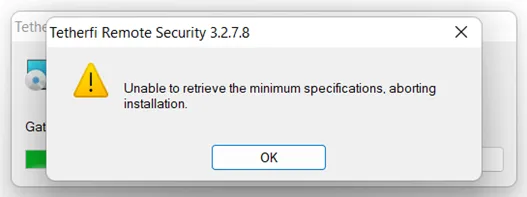
Minimum specifications retrieval failure - The MSI will retrieve the minimum specifications from the SWFH Server. If it is not able to do so installation is aborted and the following message is displayed.
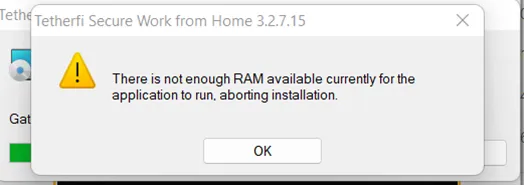
Minimum specifications failure - Following message is displayed when there is not enough memory to install the application. Minimum available RAM needed for SWFH installation is 1GB.
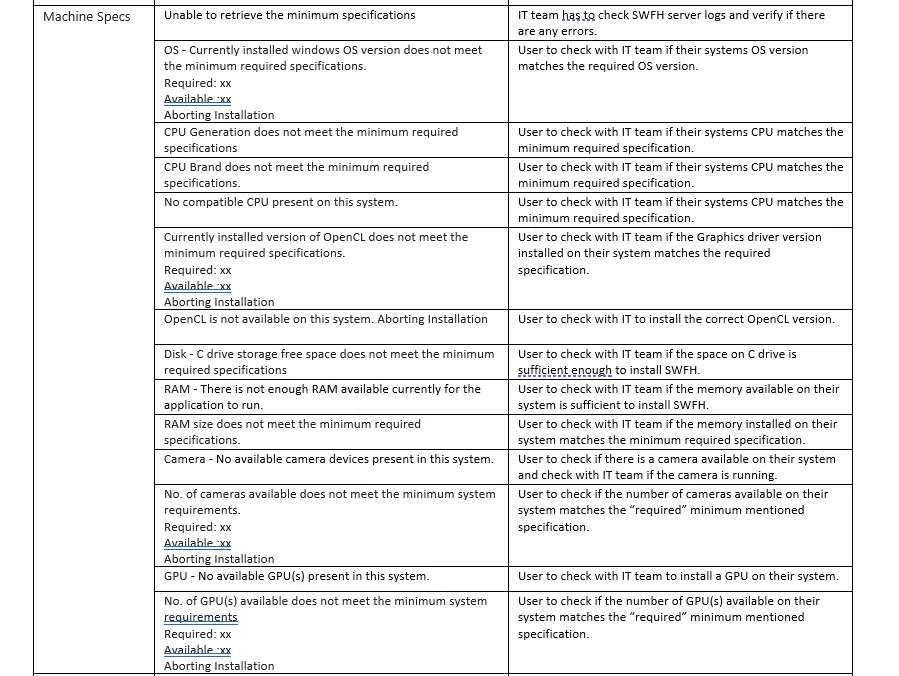
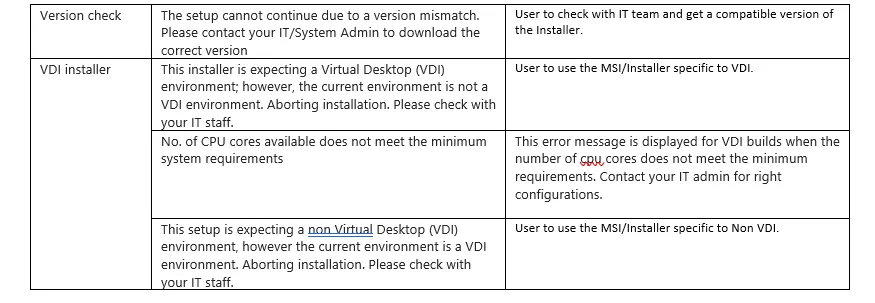
** For a list of all the specification checks and potential failures, please see "Installation Troubleshooting Details" below.
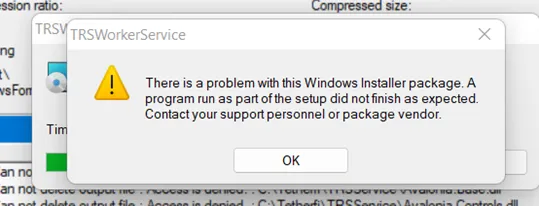
Clearing previous installs failure - In case there is an issue during installation that is not through the application, below pop up appears. Please contact your IT team for reinstall of the application.
Installation Troubleshooting Details